Block Workplace Join on corporate devices
I see this often when I visit customers. Their corporate-managed Windows endpoints are properly hardened with Intune, BitLocker, and Conditional Access. And yet some of those same machines are sitting registered in random external Entra tenants that don't belong to the customer at all. The cause is almost always the same: a single Windows dialog that pops up when a user signs in with a non-corporate account.
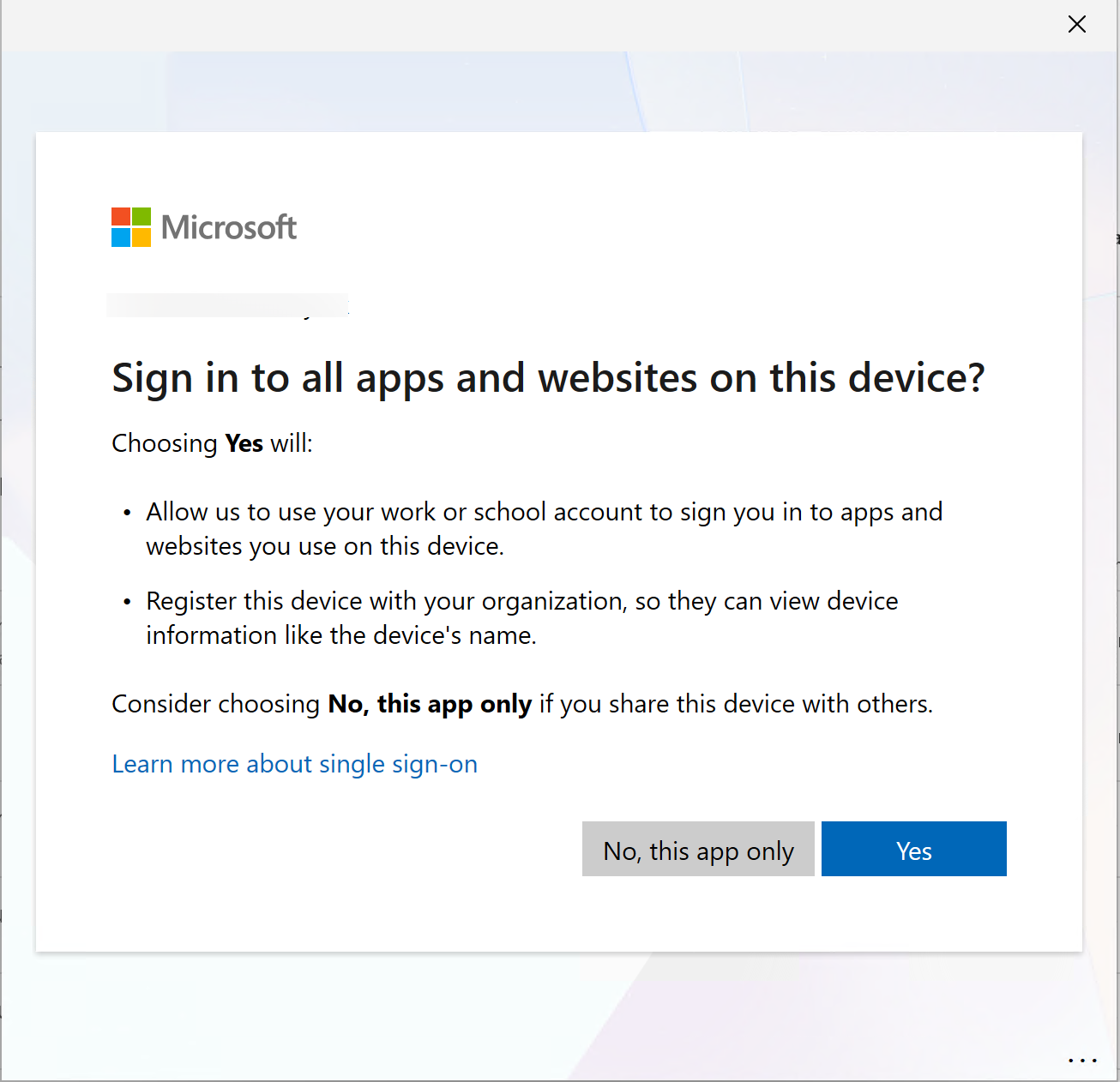
The dialog is titled "Sign in to all apps and websites on this device?". The blue, default-highlighted button says Yes. The grey, secondary one says No, this app only. If a user clicks Yes, Windows performs an Entra ID Workplace Join: the corporate device gets a record in whichever Entra tenant they just signed in with.
Picture how this happens in practice. An employee on their corporate-managed laptop signs in to a customer's Microsoft 365 tenant for some project work. Or they sign in to OneDrive with a personal Microsoft account to grab a file. Or a partner shares a SharePoint site, and they authenticate with the partner's tenant. The prompt appears, they click Yes, and the corporate device is now Workplace Joined to that external tenant. It shows up in their device inventory. It can be subject to their Conditional Access policies. It happened, you weren't notified, and the user almost certainly didn't intend it.
For most enterprises, this should never be possible.
What just happened
Workplace Join (WPJ, also called device registration or Entra registered) is the lightest of three device-to-Entra relationships:
| Type | Triggered by | Tenant relationship |
|---|---|---|
| Workplace Join | "Sign in to all apps and websites" prompt | Device record in the tenant the user signed in with |
| Entra Join | OOBE / Autopilot / Settings | Device joined to the tenant that owns the device |
| Hybrid Join | Entra Connect + GPO | Device joined to the on-prem-linked tenant |
Workplace Join is the only one that can happen opportunistically, and to a tenant the device wasn't intended for. Entra Join and Hybrid Join require explicit configuration on the device side. Workplace Join requires a single Yes click in a generic SSO dialog.
That property is what makes it risky on a corporate endpoint.
Why I block this on enterprise endpoints
1. Cross-tenant device leaks. If an employee signs in to a customer's or partner's tenant from their work laptop and clicks Yes, your enterprise device record shows up in that external tenant. The device hostname, OS version, and user identifier become visible in their Entra portal. For consulting firms, agencies, MSSPs, and anyone with regular cross-tenant work, this happens by accident more often than you'd think.
2. Personal-tenant pollution. Many employees have a personal Microsoft account or a hobby tenant. One careless Yes registers their corporate laptop in that personal tenant. The corporate device now sits in someone's personal Entra portal, subject to whatever Conditional Access or device policies they've configured on the side.
3. Token persistence in foreign tenants. A workplace-joined device receives a Primary Refresh Token tied to the tenant and the user. If that foreign tenant is later compromised, or the employee leaves and the org no longer has visibility into it, that PRT becomes a persistence vector you can't revoke from your side.
4. Conditional Access surprises. External tenants may apply CA policies to "registered devices" that weren't designed with corporate endpoints in mind. The corporate laptop suddenly gets prompted for an extra MFA challenge or a compliance check tied to someone else's tenant.
5. The default is Yes. Look at the prompt. Yes is blue and prominent; No is grey. Users see the dialog infrequently, so they don't have a learned "always click No" instinct. Your security posture should not depend on every employee correctly identifying and rejecting an SSO dialog every time it appears.
The block
Microsoft provides a registry policy that suppresses the prompt entirely:
HKLM:\SOFTWARE\Policies\Microsoft\Windows\WorkplaceJoin\BlockAADWorkplaceJoin = 1 (DWORD)
With this set, Windows stops asking "Sign in to all apps and websites?". Users can still sign in to individual apps (Outlook, Teams, OneDrive, browser sessions) without registering the device anywhere.
Here's the small script I deploy on enterprise endpoints. It sets the key idempotently and is designed to run as a detection-only Intune Remediation: Block-WorkplaceJoin.ps1 Download
$RegistryLocation = "HKLM:\SOFTWARE\Policies\Microsoft\Windows\WorkplaceJoin"
$keyName = "BlockAADWorkplaceJoin"

if (!(Test-Path -Path $RegistryLocation)) {
    New-Item -Path $RegistryLocation -Force | Out-Null
}

New-ItemProperty -Path $RegistryLocation -Name $keyName -PropertyType DWord -Value 1 -Force | Out-Null
The full version short-circuits with exit 0 if the key is already in place, and verifies the write before returning success. That makes it safe to run repeatedly via either deployment path.
How to deploy
The cleanest path is an Intune Remediation used as detection-only (Devices > Remediations):
- Upload
Block-WorkplaceJoin.ps1as the detection script and leave the remediation script slot empty. - Set Run this script using the logged on credentials to No so it runs in SYSTEM context. The policy path under
HKLM\SOFTWARE\Policiesrequires admin rights to write to. - Target your corporate Windows device groups and set a daily schedule.
Because the script applies the fix as it runs and exits 0 on success, Intune sees the device as compliant on the next run. The advantage of using a Remediation rather than a plain Platform script is output visibility: the script's Write-Output lines ("Registry key is already in place" / "has been successfully set") show up per device in the Remediation report, which is useful for verifying rollout coverage. Platform scripts run silently as far as Intune's reporting goes.
If you want a strict detect-vs-remediate split, write a tiny detection script that just checks BlockAADWorkplaceJoin and exits with the appropriate code, and use the existing script as the remediation half.
You can also push the same registry value via Group Policy Preferences if you still run on-prem AD. The Workplace Join admin template has a corresponding policy; check the current Windows ADMX docs for the exact location on your OS version rather than trusting a stale breadcrumb here.
Important: this is a corporate-device policy
This block is the right call for corporate-managed Windows endpoints: laptops, desktops, kiosks, the machines your org has issued and locked down.
It is not the right call for personal BYOD machines, where the user genuinely wants to register the device with one of your tenants. For BYOD access to work resources, the right tool is App Protection Policies (APP/MAM) in Intune. APP gives you control over data inside the work apps (copy/paste restrictions, encryption, selective wipe) without requiring the user to register the device.
TL;DR
- The "Sign in to all apps and websites" prompt is one click away from registering a corporate device with a foreign tenant: a customer, a partner, or the employee's personal Microsoft account.
- That's a real cross-tenant device leak, a token-persistence surface, and a Conditional Access landmine.
- Block it on enterprise endpoints with the
BlockAADWorkplaceJoinregistry policy. Deploy as a detection-only Intune Remediation so you also get per-device output visibility. - For BYOD, use App Protection Policies. Not Workplace Join.